
Appearance
Share to audience phones
Access: a console operator with Companion enabled. Organisation policy can restrict audio, idle behavior and document options.
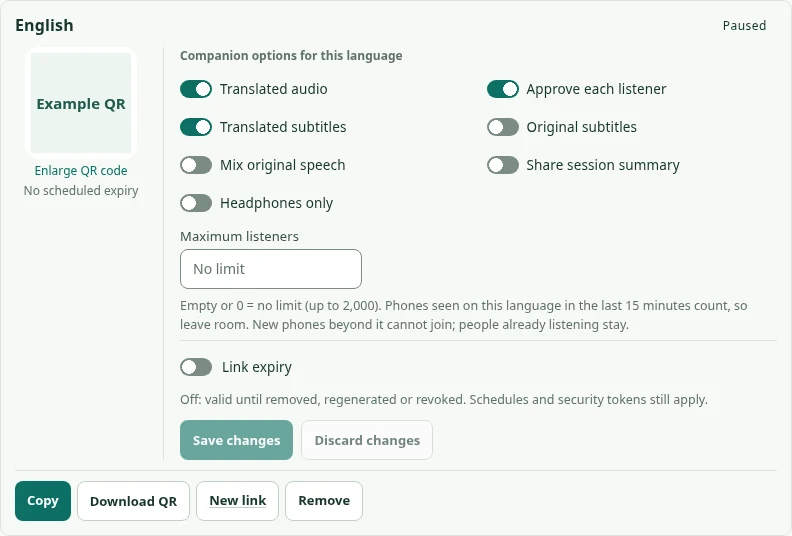
The QR placeholder is illustrative. Use the real code created in your console for audience access.
Create and share a language link
- Choose the language output in Translate.
- Turn on Companion link from that row or its ⋯ menu.
- Open More options → Companion and review the language card.
- Choose audio, translated/original captions, headphone requirements, approval, Maximum listeners and expiry as available.
- Press Save changes on the card and confirm that saving succeeds.
- Copy its link, select the QR to enlarge it, or use Download QR for event material. All QR codes (PDF), under the language cards, saves every language's QR code in one print-ready PDF, one per A4 page with its language name.
- Test the link on a separate phone, including approval and actual listening.
Each language can have its own QR. Tell the audience which language each QR provides. When the languages of a console share one event, a phone can pick another language straight after scanning (before entering a name) and while it waits for approval (it changes to that language once admitted), as well as while listening. The organiser name/logo applies to shared branding; the current run name identifies the talk on the phone. The logo also sits in the centre of each QR code. A white or very light logo is detected automatically and shown on a dark background wherever it appears (the QR code, the Companion page, campaign station pages, transcript and summary documents, and the console's logo preview); other logos stay on white.
Admit and manage listeners
Maximum listeners limits how many phones can listen to one language (up to 2,000; empty or 0 means no limit of its own). When it is reached, new phones cannot join; people already listening keep listening. Phones seen on that language in the last 15 minutes count, including phones that have switched to another language and requests still waiting for approval, so leave plenty of room, or leave it empty for a large open event. A phone that switches into a full language waits and retries until a place frees; a phone that has been away for more than 15 minutes counts as new and can be refused. You can change it during the event and Save. It is not available in High privacy. For a large open event, leave approval off so people join straight away.
Enable Require my approval for each listener when you need controlled entry. Review waiting requests and admit the expected people. Remove access when necessary using the relevant listener action. Summary & transcript does not need approval: with it off, every phone with the link can request documents. Turning approval off does not admit phones already waiting: use Approve all for them.
Use Users → Join Companion as the audience's instructions. A pending visitor is not an approved live listener.
Expiry and link changes
New links have no expiry by default, so a QR code printed days before the event still works on the day; turn Link expiry on and choose the hours only when a link must stop working by itself, then Save. Before printing QR codes, and after restoring a backup, check each card shows No scheduled expiry; if not, turn Link expiry off and save. Remote Speaker links have no expiry by default too. Caption overlay and transcript feed links are different: they keep a 24-hour expiry by default, and if you turn their expiry off, their caption text is still deleted 24 hours after the last line was published, so an abandoned event never leaves captions online. Replacing a link with New link, removing it or expiry can end access. Companion links and QR codes stay until someone removes them. Signing out, a restart, the end of a run or a new day does not remove them. A link is removed only by a deliberate action: Remove or New link on its card, Reset Companion or Reset this console, a platform administrator removing it, or deleting the organisation. A Link expiry you turn on yourself is your own decision to end the link at that time; the card then says “The link and its QR code stop working at this time.” Signing out (on any device signed in with your account), a password or role change, or an administrator disabling the account only pauses the account's links: phones show Paused until the account signs in again (re-enabled first, if it was disabled) and presses Start; a new sign-in brings the console's links back by itself, and Links from another session → Use these links is needed only if they are not back. Give each console its own operator account: it keeps each console's links separate. Reset this console also removes reusable Companion links and invalidates their printed/shared QR codes. Back up and coordinate any deliberate reset; do not reset or regenerate a printed QR just to pause a talk.
End talk (beside Start/Stop in the console's top bar) ends the current talk: phones show the After the event message. Stop on its own closes the talk as a test and phones show Paused; End talk stays available for that talk until this console's next Start. Either way eligible language links remain ready for the next talk. With High privacy on there is no End talk: press Stop, then End event. Auto-stop on silence only pauses the languages: phones show Paused and the next Start continues the same run. Start the next run with its correct name. While translating, the console warns when phones are on a Companion link whose language it is not sending to Companion (the language is not running, or its Companion switch is off): "Phones on the {language} Companion link show Paused: that language is not being sent to Companion." Turn on that language's Companion switch, or start the language if it is not running. Existing QR codes do not acquire a longer validity merely because they are printed.
Keep the same QR codes after a new sign-in
Each console computer keeps its own setup on your account: its languages, hall, settings and Companion links with the same QR codes. Signing out, a sign-in that ends or a new sign-in never changes it, and two consoles of one account never share or swap setups. After a new sign-in the browser opens its own console's setup by itself. A browser that does not know which console it is (a new browser, or its site data was cleared) asks Which console is this?: pick the hall and console, and its setup comes back exactly as it was (setups from before this change are listed as Saved setup). If a console ever shows another console's setup, open Settings → This console's setup → Choose setup and pick the right one. Nothing is reset unless you do it. Your links stay until someone removes them. Check that every language is back, then open a printed QR code on a phone. If the setup you need is not listed:
- Restore last night's backup: Settings → Back up & restore this console, choose the file, Unlock & preview, then Replace settings & reload. This brings back the languages and their links: a backup made since the 12 November 2026 update also puts back links that were removed (for example by Reset Companion) with the same QR codes, and then tells you which came back.
- Without a backup, open More options → Companion. When your account has links from an earlier sign-in, the Links from another session box opens by itself. Press Use these links for the event's group and confirm, before adding any language or turning on Companion (the button is unavailable while anything runs or this console already has links). Then add the languages: each picks up its existing link and QR.
- Open a printed QR code on a phone and check it reaches the right language.
Never rebuild the console by adding languages and turning on Companion first: that creates new links, and the printed QR codes stay Paused. In the same box you can Remove leftover test links you no longer need; each account can hold a limited number of Companion links (your administrator can tell you the number). Never remove a link whose QR code is printed.
Change languages or restart a talk
Companion selection, saved link options and the QR belong to the language. Moving a language between the first output and an extra row keeps that language’s link and on/off choice. Turning Companion off pauses sharing and keeps its QR; it does not turn itself back on just because the link exists.
After Stop, change the output order, translation type or saved link options, then Start the next run. Enabled Companion languages reconnect as their translation becomes ready; you do not need to refresh the console. A newly started extra language with Companion enabled joins the current run. Removing an output pauses its Companion; adding that language back can reuse its valid link.
Save card options and allow Stop to finish before restarting. A language waiting for its translation or audio stays paused until ready. Test actual sound or captions on a phone after changing the setup. Expired, removed or replaced links still require a current QR.
Autosleep, idle phones and recovery
Review Autosleep per extra language and the idle-listener policy (Stop idle listeners). Both stay on by default because a language nobody is using still uses translation time; turn them off for an event where every language must keep running. Eligible phone-only outputs can pause while unused. A phone returning from idle may need to resume listening.
When you press Start, a language with Autosleep that nobody is on yet stays asleep, and the console names every such language in one notice above the languages: Asleep until someone joins: … (or Stopped because no one used it: … after Stop idle listeners). It starts by itself when a phone joins. Start now in that notice starts them all at once; they then keep running until you stop them. A running language with nobody on its link for 5 minutes shows No one listening on its row; point at it to see why it still runs (Autosleep off for that language, started by hand, recorded, a live feed, shown on a screen, its own speaker, or your organisation keeps every language running). It is still using translation time: if nobody needs it, stop it with its own ▶/⏹ (turning its Autosleep back on helps only when the reason is that its Autosleep is off).
After a brief network drop, each running language's Companion reconnects on its own, also when its translation reconnects, and stopping only the main language does not pause the other languages' Companion. The Resume Companion button shows only while a language is translating but its link is still paused; inspect the output and listener state before using it. After a longer outage (for example the connection to phones is down for several minutes), each language keeps trying about once a minute without giving up, and at once when the console computer is back online, so phones resume by themselves. Translation languages behave the same way: after their quick reconnect attempts they keep retrying about once a minute until they are back or you press Stop (only a refusal that can never succeed, such as a removed permission, still stops a language with a message). Phones waiting on Paused keep checking too, also after a long break, and sound comes back by itself: a phone notices the restart within about 20 seconds of Start (after the console's own start-up), and plays the short spoken AI notice first only when a new run begins (a pause in the same run does not repeat it); after a page reload the links come back by themselves once their languages start, and Resume Companion (if it shows) retries at once. If a language's phones show Paused while the console shows that language live (for example after a long outage, or a sign-out of the same account on another device), the console publishes it again by itself within a few seconds; it never takes a link over from another console. After the console could not reach the service for more than about 12 minutes (internet down, laptop asleep), the main language and the other languages normally restart by themselves in the same run when it is back; check each row then. Keep the event's existing links when recovery is sufficient.
Companion audio is clear speech quality: the console sends each language at a modest bitrate and phones receive mono speech, so a busy venue Wi-Fi carries many phones and a slow console connection keeps up. When adaptive phone audio is switched on for your platform, each phone also gets a lighter version of the same sound: a phone on a weak connection usually steps down to it by itself and back up when its connection recovers, without the listener doing anything. When the platform is at its audio capacity, a newly started language gets the normal version only. Phones served through an organisation relay always get the normal version. When a phone's sound is far behind the speaker (about 8 seconds or more), its Companion page shows a small clock with the delay in seconds next to the status dot at the top; it goes away once the sound catches up. When the console's connection cannot carry a language's audio, its row says Network too slow: some audio is being held back, phones may hear gaps; move the console to wired Ethernet or a dedicated hotspot, or stop languages nobody needs.
Wait music
More options → Wait music sets what Companion listeners hear on their phones while they wait to be let in, before the first Start, after Stop, during a pause for silence and after End talk. It stops when translation starts on the phone. After Stop or a pause for silence, it returns after about 10 seconds. Links set to text only, High privacy links and listeners who chose Text only stay silent. End event stops the music until your next Start. Removing a link, New link, Reset and expiry end the music on that link.
A console with no saved choice uses the organisation's default music in upload order. The tab shows the file names or Off: your organisation has no default music.
- To set this console's own music, choose Playlist, tick the files, choose In order or Shuffle and press Save. The playlist repeats. Choose Off and Save to keep this console's phones silent. Phones already waiting pick up changes within a few seconds.
- Choose Use organisation default to clear a saved Off or Playlist and follow the organisation's music again.
- Use Play beside a file to preview it on this computer. Test the waiting experience by joining through a Companion link on a phone.
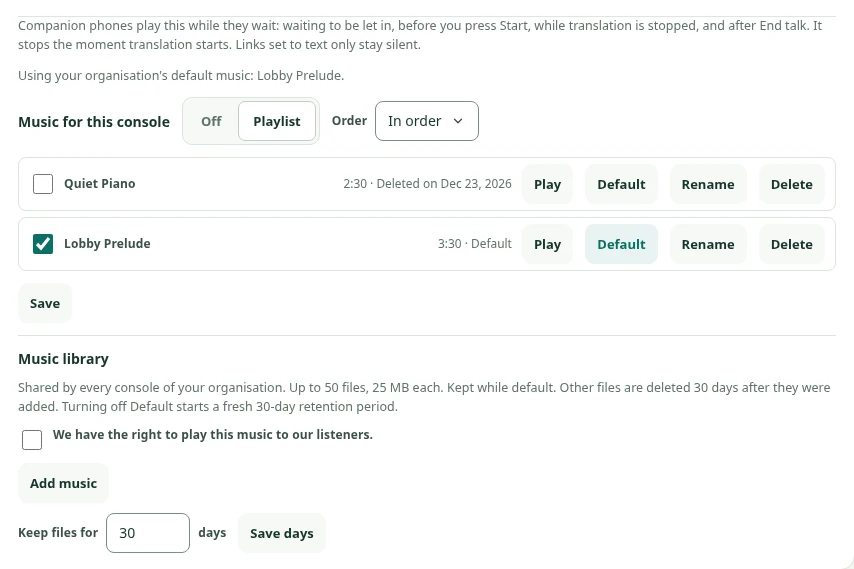
Organisation administrators manage the shared Music library. Turn on Default beside each file to include it in the organisation's default playlist. Use Rename to change a file's displayed name and Delete to remove it from the library. Default files are kept while default and show Default in place of a deletion date. Turning off Default starts the full Keep files for … days period again from that day. For other files the period starts when they are added. The period is 30 days unless changed.
Tick We have the right to play this music to our listeners. before choosing Add music. The library accepts up to 50 MP3 or WAV files of 25 MB each after conversion. WAV files can be up to 10 minutes and are converted to MP3 in the browser. Library changes and each console's saved choice are recorded in the audit log.
Documents and announcements
Enable listener documents before the run if promised. Add event messages for opening/closing instructions, and wait music for phones that are waiting. High privacy restricts saving and text sharing; see privacy.