Appearance
Sign-in and account security
Access: your own account. Account recovery actions for other people require an administrator.
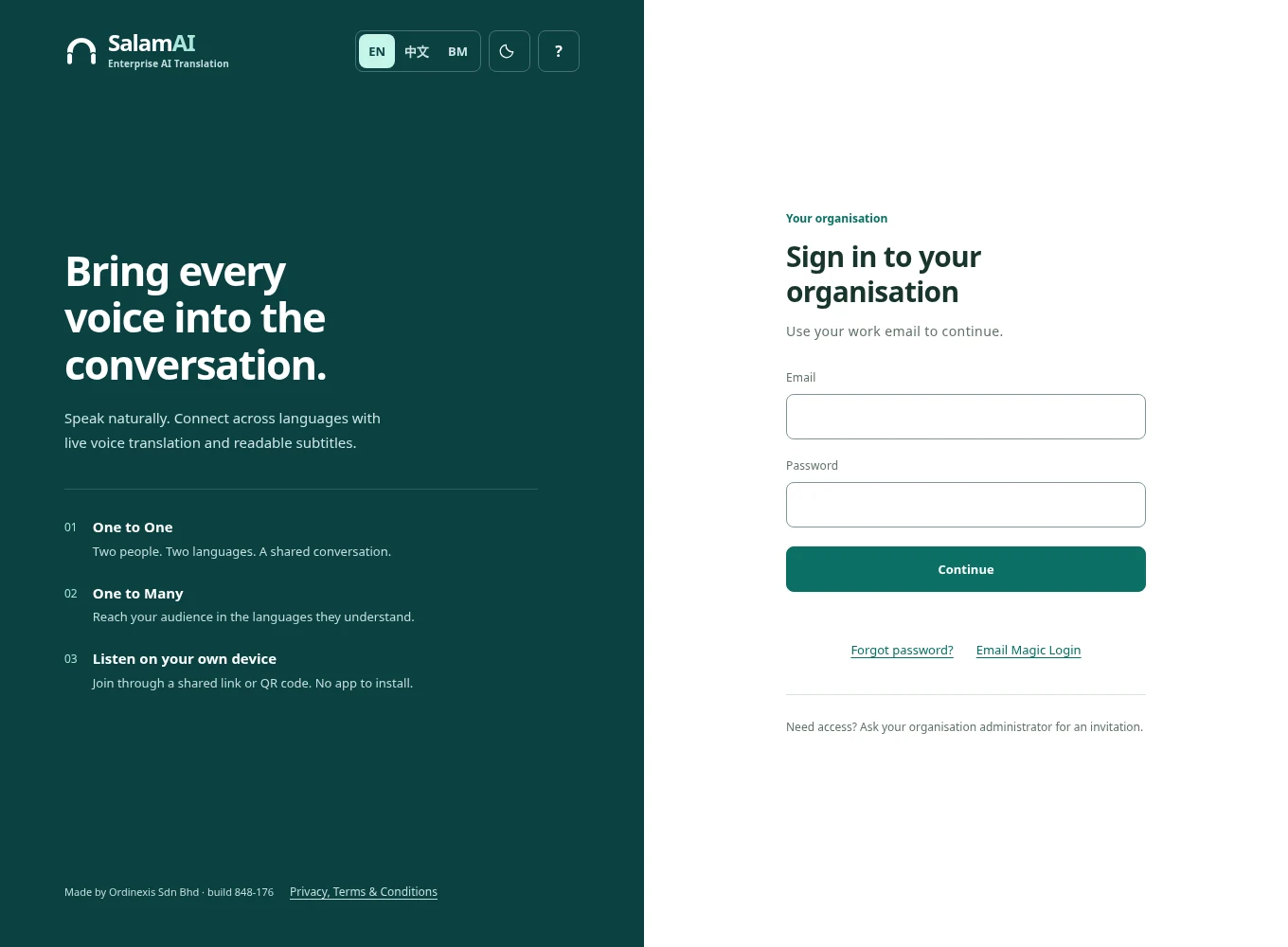
Sign in
Use your organisation's console address. Enter the requested credentials and complete the browser check and two-step verification if required. Read and accept the current privacy notice before proceeding.
A campaign-station password is for its station page; it is not a normal console login. Audience Companion links also use a separate joining journey.
Passwords and sign-in links
Use Forgot password? on the sign-in page when needed. Follow the newest email and choose a new password. Treat reset links as private credentials.
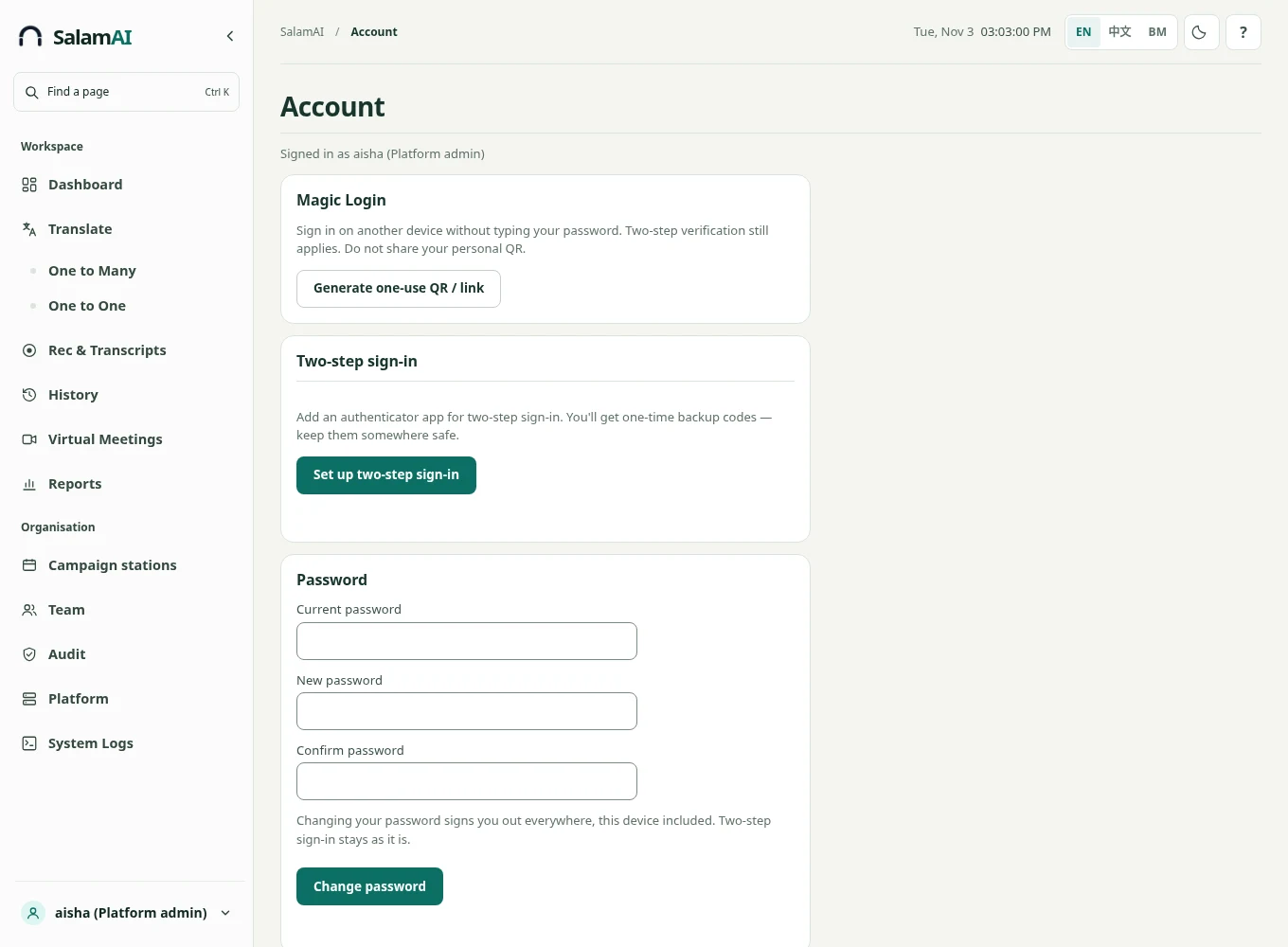
In Account, use the password controls to change your own password. Magic Login provides a single-use sign-in link where enabled. Open it promptly and do not share it. An expired or already-used link needs a fresh request.
Two-step sign-in
Open Account → Two-step sign-in. Follow the authenticator setup, confirm the displayed verification step and store backup codes securely outside the browser. Test a normal sign-in before relying on the account for an event.
If you lose your authenticator and backup codes, contact your authorised administrator. A reset should follow your organisation's identity-check process.
Account menu and sign-out
Open the name/email menu at the bottom of the left rail for Settings and Account. Check the organisation and identity before editing policies or reports.
Sign out when leaving a shared computer. Do not use sign-out as a way to pause a live event: finish the run and saving first, and review what will happen to its links and access.