
Appearance
Run your first One to Many session
Access: a console account permitted to start translation.
A One to Many session translates one source for an audience. Prepare and test it before guests arrive.
Before you start
Have the speaker's audio source, required output languages and headphones ready. Decide whether to save recordings or transcripts and whether listeners may request documents. Confirm that the organisation's allowance and event permissions cover the session.
Start a short rehearsal
- Sign in and open Translate → One to Many.
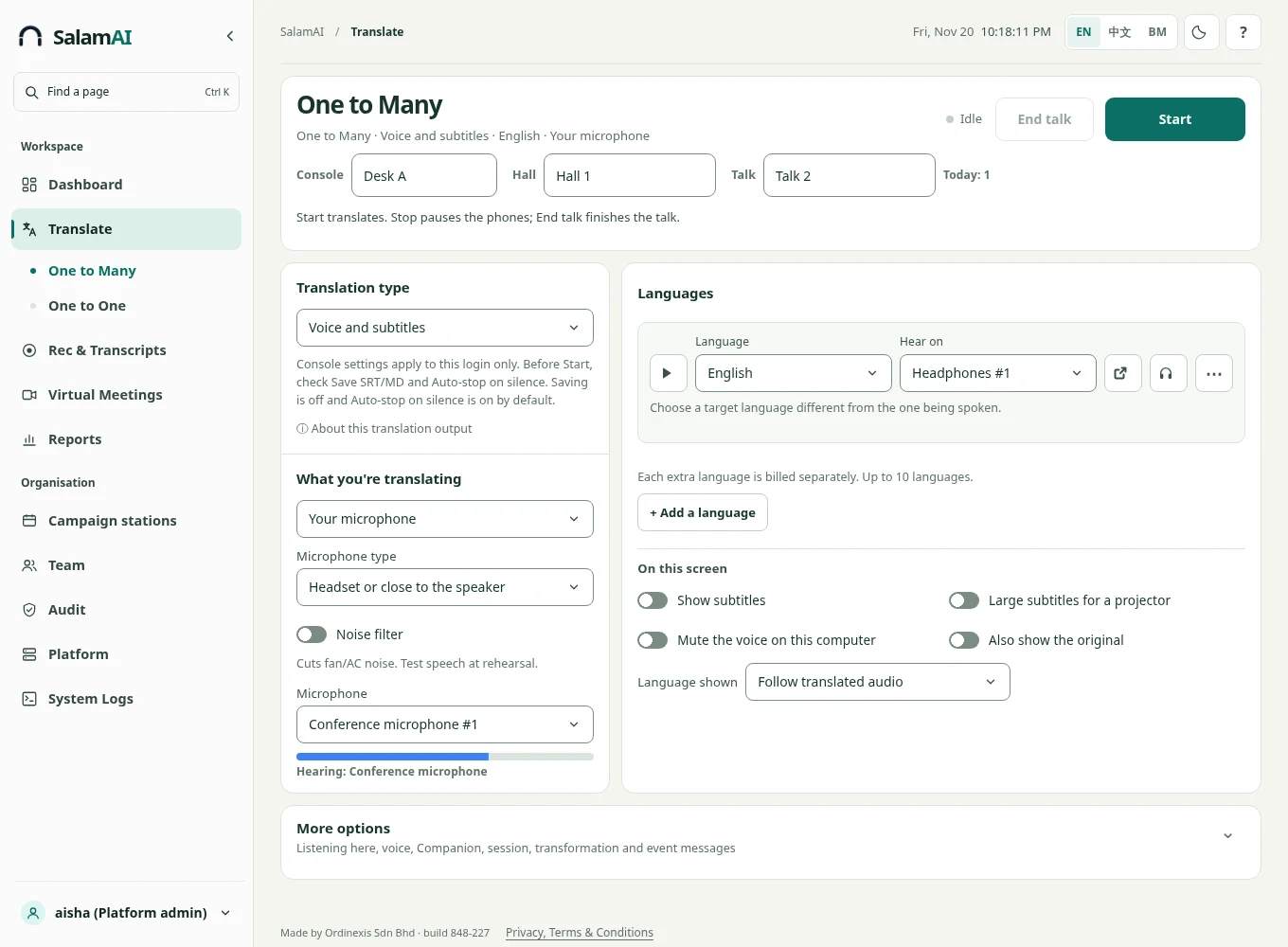
- Fill Console, Hall and Talk on the row under the title (beneath Start). For example: Desk A, Hall 1, Opening keynote. Today beside Talk counts this hall's talks since midnight. Eligible High privacy sessions do not keep these names.
- Choose the Translation type you need: spoken translation with subtitles, subtitles only, same-language captions or transcription where available.
- Under What you're translating, select the microphone or shared-audio source. Speak or play a test and check the meter: for a microphone, the level bar under Microphone moves before you start and names the device it hears (with High privacy on it appears only after Start).
- Select the output language. Use + Add a language for additional languages you intend to use.
- Check each language's output device, monitoring and saving choices. Enabling an extra language can add usage.
- If sharing to phones, enable its Companion link and review Companion settings.
- Press Start / Start translating, review the startup confirmation and confirm when correct.
- Say a short test sentence. Listen to the output and inspect captions on the devices guests will use.
Avoid reloading the page during a live run: it stops translation for everyone listening. If it happens, the banner that appears names the languages that were running: check them, press Start again, Companion comes back on the same links by itself; press Resume Companion only if that button shows. High privacy runs get no such banner; start again as usual.
Expected result: the console shows a live state, its input meter reacts to speech, and the chosen output is audible or visible. A live connection with no input sound is not a successful rehearsal.
Finish the rehearsal
For a real talk, press End talk (beside Start/Stop) and choose End and send, or End, don't send to end it without sending its summaries; a plain Stop closes the talk as a test (nothing is sent, phones show Paused, reports hide it). While Stop shows Stopping…, wait instead of pressing again. Allow the last words and any saving to finish. Check the saved files or document status if enabled. The next Start creates the next talk; review its proposed name before the real talk.
Use the event checklist before opening audience access. If a step is blocked, read the adjacent reason and use operator troubleshooting.