
Appearance
Settings, backup and restore
Access: the settings available to your account. Organisation policies can constrain them.
Open Settings from the account menu at the bottom of the left rail. Review defaults before an event; a default does not necessarily change every language or session already configured.
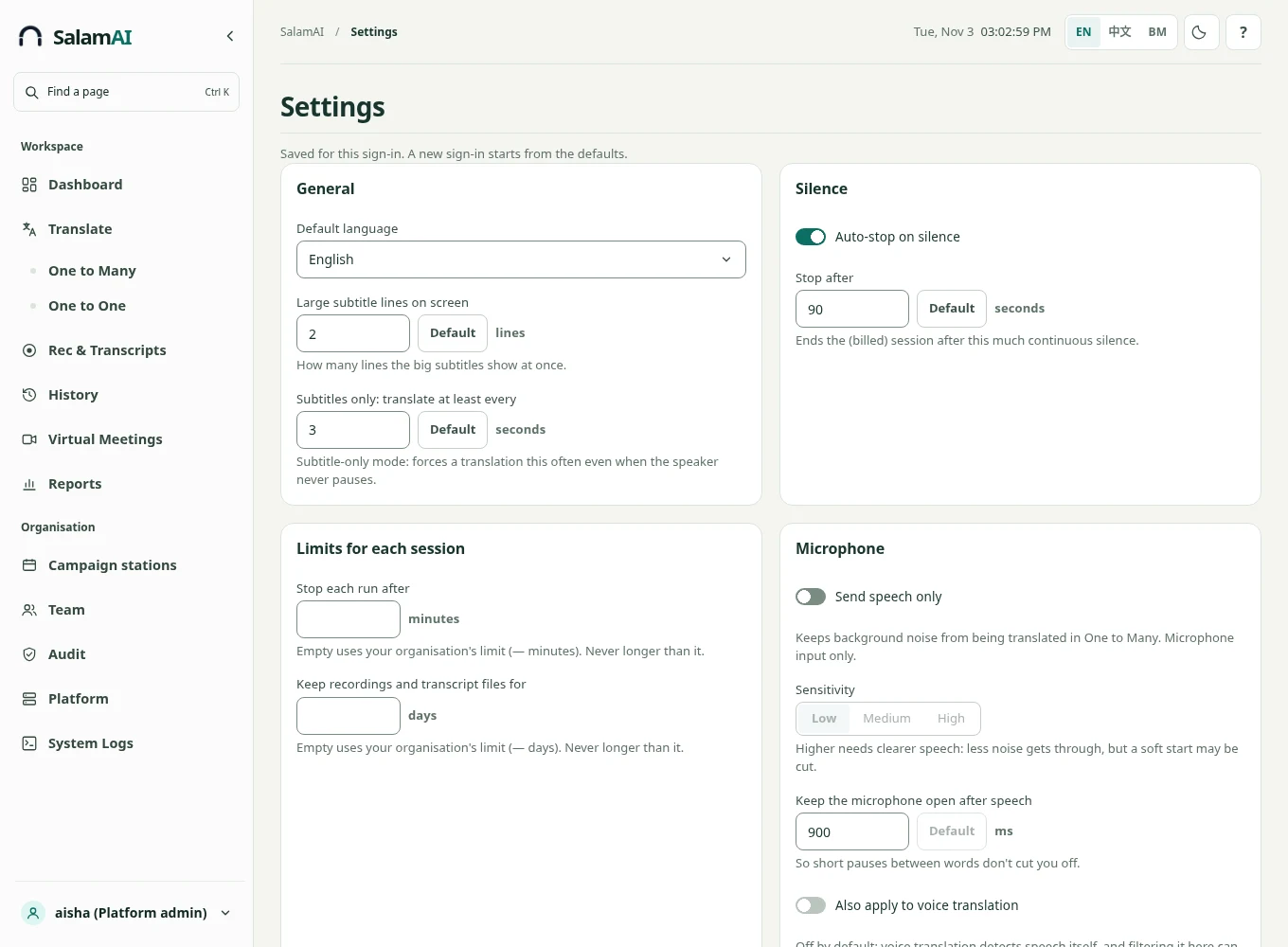
Set useful defaults
Review the available groups for general preferences, silence behavior, session limits, microphone handling and after-session actions. Auto-stop on silence stays on by default (after 90 seconds of silence) because a language left running in a quiet room still uses translation time; turn it off, or lengthen Stop after, for an event with long silent breaks. In One to Many it pauses every language at once and phones show Paused, except a language whose pop-out window is open: that language keeps running (and billing), and so does the main language, because the documents are written from its original speech; the console names the languages it kept. A pause keeps the talk open (no After the event message, no documents sent) and the next Start continues it. Stop stops every language, the kept ones included, and closes the talk as a test; press End talk instead to end the talk and send its documents. Turning it off is saved for this console and stays off until you turn it back on. Stop each run after is empty by default: a run has no time limit unless you or your organisation set one. Save and confirm success. For an existing event, return to Translate and inspect the actual run's settings.
Offer a session summary is the console's after-run summary option, separate from listener PDF/email capture. Read Documents before promising delivery.
Back up this console
- Open Back up & restore this console.
- Review what will be included.
- Choose a strong password and save the encrypted backup file.
- Store the password separately and test that the file is available before changing computers.
A backup also carries this console's Console, Hall and Talk names, so a restore into an empty console brings them back. This is a configuration backup. It does not include recordings, transcript archives, team records or campaigns. Use the authorised download and retention processes for those records.
Restore carefully
- Finish live work and pending saves.
- Select the backup file and enter its password.
- Review the proposed restore and any warnings about devices, links or unavailable features. The preview also says when the backup's name settings use paid AI name checks (see Transformation).
- Confirm only when you intend to replace the current console settings.
- Re-select microphones/output devices that do not exist on this computer.
- Rehearse audio and test every shared link before the event.
Restoring cannot guarantee recovery of a link that no longer exists or is no longer authorised. Some eligible links can be restored when the platform still recognises them; otherwise create new access and distribute the new QR deliberately.
Reset is a separate action
Reset this console is disruptive. It removes this console’s reusable Companion links and QR codes, name corrections, branding and console choices. Previously printed or shared QR codes stop working. It does not remove recordings, saved transcripts, campaigns or Team settings, and it leaves the interface language and theme in place.
Before a reset, finish the live run and pending saves, then download Back up & restore this console if you need the setup again. Read the reset confirmation and coordinate with the organiser. A backup does not guarantee that a removed or no-longer-authorised link can be restored; verify access and distribute replacement QR codes when necessary. Do not reset to repair a temporary audio or connection problem.