
Appearance
Reports and audience Statistics
Access: an authorised report viewer. Members, auditors, organisation administrators and platform administrators may have different scopes. Check the current organisation and ownership filters.
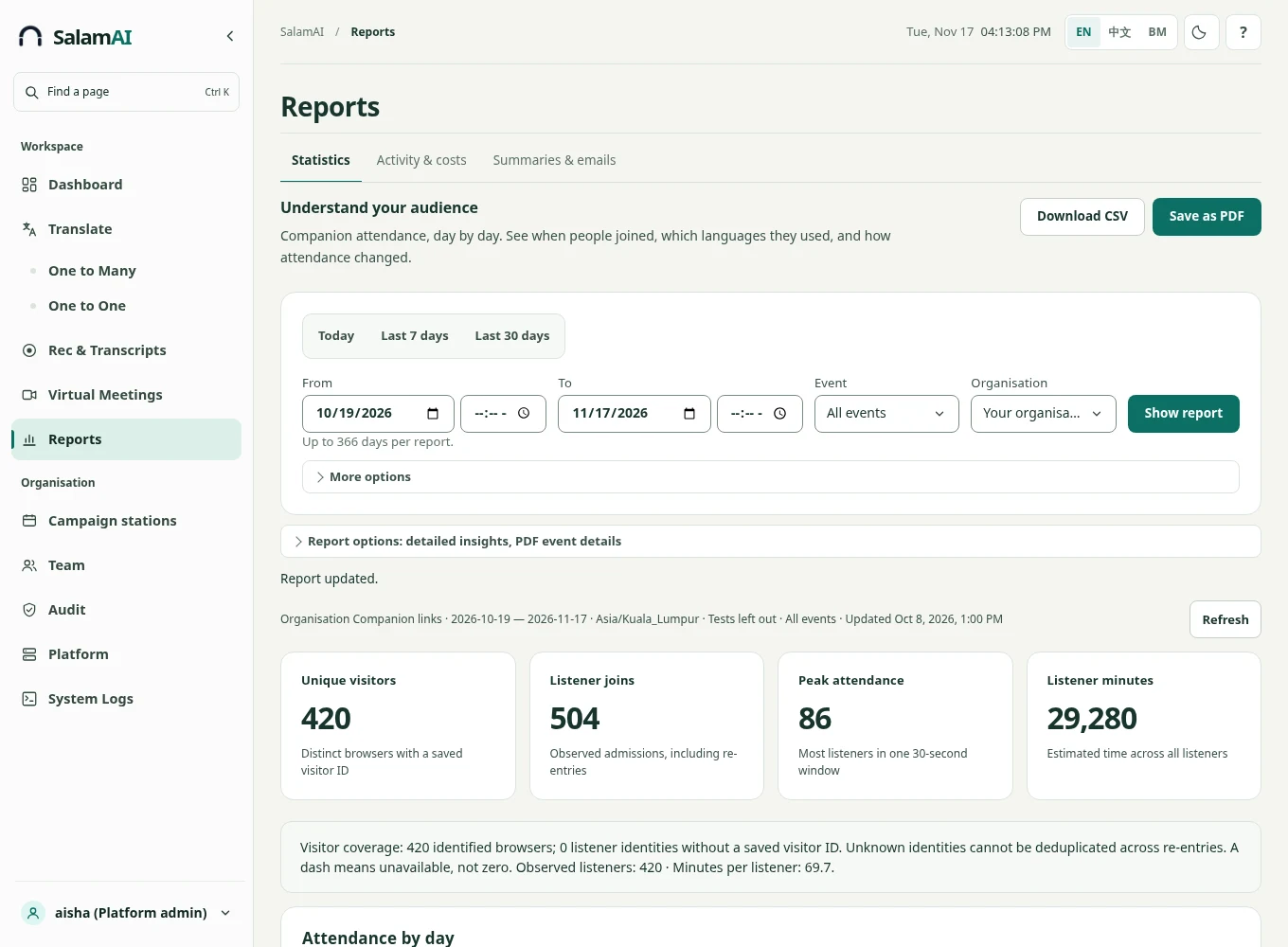
Reports has three tabs: Statistics (Companion audiences, it opens first), Activity & costs (translation use and costs) and Summaries & emails (listener summaries and transcripts).
Load audience Statistics
- Open Reports → Statistics.
- Choose a quick range (Today, Last 7 days, Last 30 days) or set From and To; add a time of day to narrow the report to those hours. Choose the Event (and, for platform administrators, the Organisation), then Show report.
- More options holds the less common choices: Minimum length leaves out short talks such as sound checks, Time zone sets the zone for dates and hours, Unique listeners only gives the identified-browser view for the selected period, and talks closed as tests are left out unless Show tests is on.
- Read the report's coverage notes, then compare totals and breakdowns by day, hour, language and event.
- Report options: detailed insights, PDF event details holds Detailed (the additional analysis offered by the report) and PDF event details (optional).
Interpret the figures
| Figure | Meaning and limitation |
|---|---|
| Listener joins | Observed connections; repeat entries may count again. |
| Unique visitors | Identified browsers grouped across the period, not verified individual people. |
| Peak attendance | The largest audience observed at one time; an estimate rather than a headcount. |
| Listener minutes | Estimated presence over time; not proof of audible playback or billed translation time. |
| Languages | Audience activity for each language; one browser may appear in more than one language. |
Different devices, cleared browser storage or unavailable identifiers affect unique counts. Shared devices can represent more than one person. Unique-only views can exclude unidentified activity and older aggregated records. Do not sum language reach and call it distinct people across the whole event.
These audience figures concern Companion listening. Account users, station operators, Remote Speakers and two-way participant phones are different operational populations. Use Activity & costs for the relevant translation activity.
Export a customer-ready report
Set the filters first, then review the loaded result. Under Report options: detailed insights, PDF event details → PDF event details (optional), enter optional Event Name, Event Date and Event Purpose/Location report labels where offered. These describe the export; they do not change the data selection.
Use the PDF/print action for a branded executive report. Review its summary, breakdowns, measurement notes and page layout; choose Save as PDF in the browser dialog where applicable. Use CSV for the data returned in the loaded report. The Statistics PDF and CSV state what narrowed the figures: the times of day in From and To, the Minimum length, and always whether tests are in the figures (Tests included or Tests left out). Large tables or server limits may mean the display/export is not an unlimited extract of all history.
Activity & costs
Activity & costs explains session/run activity and the permitted usage/cost breakdowns. From, To, Show tests and Show report stay in view. From and To also take a time of day, read in this browser's time zone (named under the filters), and days are grouped in that time zone. More filters holds Minimum length, Group by, Conversation type, the filters for a single translation experience, language, person, console or session, Currency, Organisation (where you may choose one) and Reset filters. Minimum length and Show tests work as in Statistics, so totals, the CSV and every breakdown can leave out sound checks and test talks. A talk's length is the time from its start to its end; activity outside a talk uses its own connected time. Members and auditors see usage only (activities, minutes and audio); billable amounts, rates and currency appear for organisation and platform administrators. It is separate from audience participation. Billing explains statements and invoices, which only administrators can open.
Summaries & emails
Summaries & emails is the list of listener summaries and transcripts by talk (Document preparation & delivery): whether they are ready, held for review or sent. It loads when you open the tab. Use it to check preparation, review and delivery, and to Release, Retry or Finish now where offered; see Documents.
Missing or older events
Check time zone, date boundaries, event/console filters, ownership and whether tracking existed during that period. Historical or recovered observations may lack unique identifiers or detailed language history. A modern filter cannot manufacture data that was not captured. Ask an administrator to review coverage rather than assuming an empty result proves no attendance.