
Appearance
Platform administration
Access: Platform admin. Some sensitive actions require a fresh password or two-step sign-in. Work in the intended organisation and coordinate changes with its event operators.
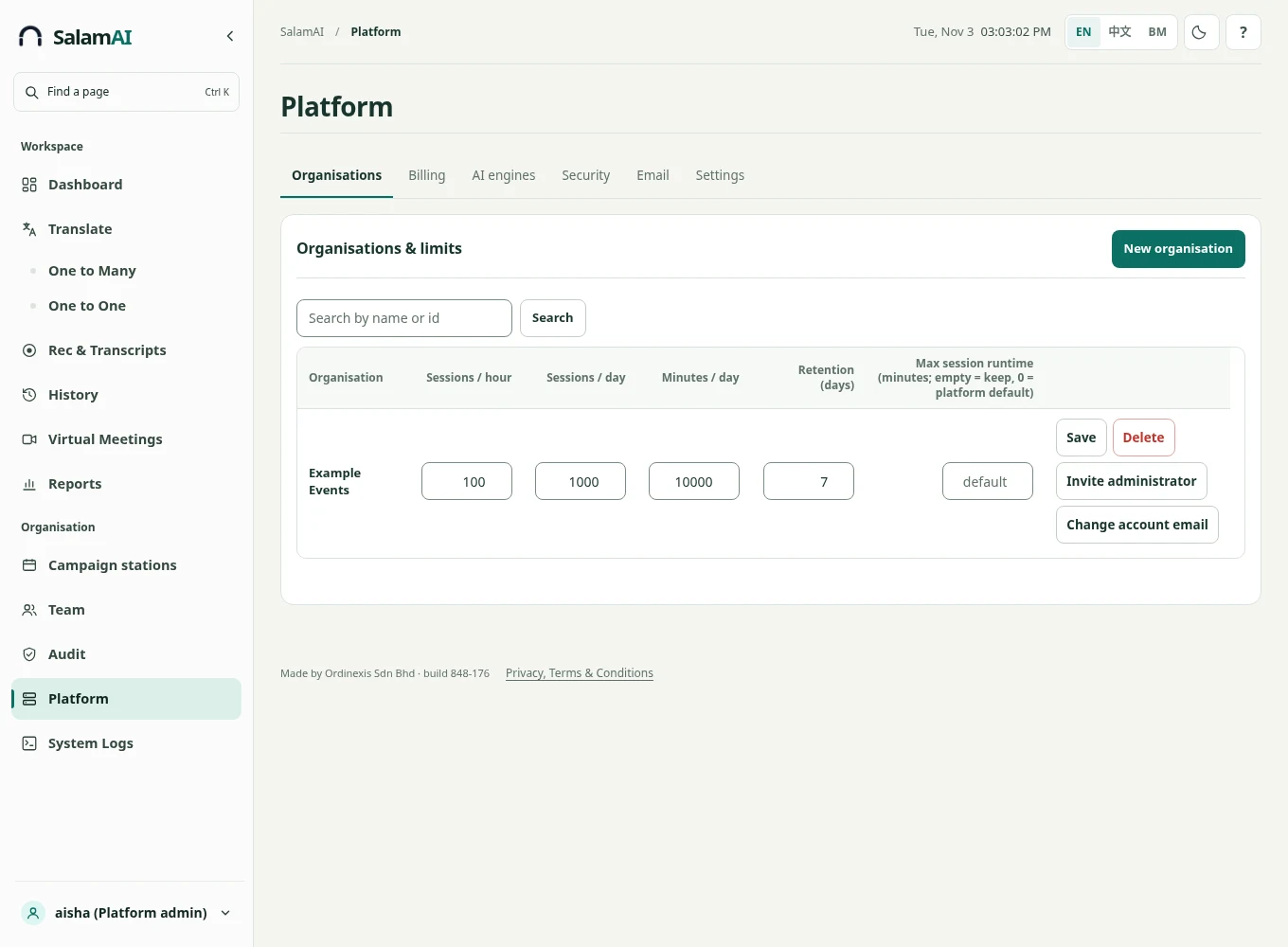
Create an organisation
- Open Platform → Organisations.
- Choose New organisation, enter its identity and set the permitted usage/retention limits. A new organisation starts with no session or minute limits (0 = no limit); set a number only when the organisation needs a ceiling.
- Review enabled features and any maximum session/runtime choices offered.
- Save and invite the organisation administrator through the offered action.
- Check invitation delivery and have the administrator test access and organisation scope.
An organisation is a separate administrative scope. A display-name change is not a request to move another organisation's users or records into it.
Manage accounts and limits
Use organisation search to locate the intended row. Review current hourly/daily session allowances, translation minutes, retention and runtime limits before editing. 0 means no limit for sessions per hour, sessions per day and minutes per day, and an empty run time uses the platform setting (no limit unless one is set). Save and confirm the change. A smaller allowance can affect new work; coordinate it during an event. A minutes limit counts both finished minutes and minutes still running (console languages and campaign stations), and only refuses new starts once it is used up: runs already under way keep going, but every new Start is refused (including the Start after a break or after Auto-stop on silence paused the run, and a language added to a running run), and the organisation's audit trail records that the limit was passed. Only a language coming back after a drop in its own run (a reconnect or replacement) is exempt, and it does not count toward sessions per hour or per day: while its session is still open (the console keeps it alive while it reconnects) or within about 10 minutes after its session ended by a fault. Otherwise its retries count as new Starts and are refused while the limit is used up, so set event limits to 0; if a set session limit refuses it, it retries about once a minute. While a minutes limit is set, the console shows a banner at 80 %: “Organisation minutes today: {used} of {limit} used, {left} left. When none are left, new Starts are refused.” At 100 %: “Your organisation's minutes for today are used up ({limit}). Languages already running keep going; new Starts are refused until {time}.” The limit starts again at midnight UTC. For an event, set Minutes / day, Sessions / hour and Sessions / day to 0, or high enough for every day including rehearsals. Translation time is counted only while a language is actually connected; time spent reconnecting is not.
Invite administrator recovers or establishes the organisation's authorised administration. Change account email updates an existing account where offered. Verify the person's identity, current organisation and new address; account security changes require care.
Read the confirmation for destructive actions. Deleting an organisation is not a normal way to disable one member or correct a billing address.
Platform control areas
| Area | Administrator responsibility |
|---|---|
| Organisations | Organisation identity, account administration and limits. |
| Billing | Prices, statements, invoice administration and restricted financial oversight. |
| AI engines | Help-assistant availability and daily allowances, the summary option and which engine checks unsure names (with backups when one cannot answer: all engines share the console's short wait, so a slow engine still leaves its backups time; consoles offer name checks whenever at least one engine is set up). A server operator can also make the name-engine choice on the server; it is audited the same way. Restricted service selection is managed by the platform owner. |
| Security | Entry protections and permitted recovery settings. |
| Outbound delivery configuration and verification. | |
| Settings | Approved platform feature and operational settings. |
| Relays, when enabled | Authorised site-delivery registration, capacity and availability. Relay control shows the Relays tabs; phones use relays only after phone assignment is also turned on. Organisation relays need no shared platform pool. |
| Dashboard / System Logs | Live oversight and restricted diagnosis. |
Service-specific configuration is restricted to authorised administrator onboarding and the platform owner. This public guide documents user-visible operation without publishing service identities, credentials or implementation settings.
Safe change process
Record the purpose, affected organisation and expected effect. Review whether a setting applies now or needs an approved restart. Test the intended user journey after changing it. Preserve a recovery plan for disruptive changes and never restart merely to clear a warning during an active talk.
Security, email and settings · Monitoring · Relay operations · Team roles