
Appearance
Join an event with Companion
Companion lets you hear a talk or read its live captions on your own phone. The organiser provides a link or QR code, usually for a particular translation language.
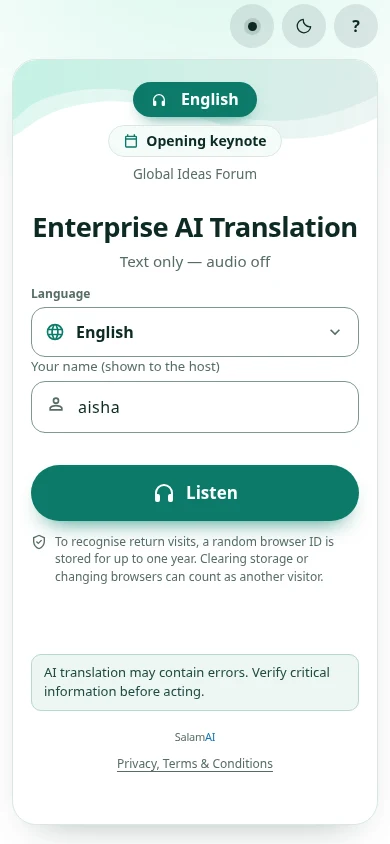
Join
- Connect your phone to reliable Wi-Fi or mobile data.
- Scan the organiser's QR code using your camera, or open their link in your browser.
- Check the event and language shown. If this is not your event, close the page and ask for the correct link.
- Read and accept the privacy and terms notice if shown.
- Enter the requested name and select Listen or the join action shown.
- If approval is required, keep the page open while the organiser admits you. You can change the language while you wait; it switches once you are admitted. Languages the organiser adds after you opened the page appear in the list once you are admitted, or within a few minutes.
- Follow the audio prompt. Tap the listening control when asked; browsers can require a tap before sound plays.
You are ready when: the page shows that you are connected and live captions or translated sound arrive while the speaker talks. A quiet speaker or a paused event can produce no sound even when you are connected.
Approval, headphones and waiting
Approval is controlled by the organiser. Refreshing repeatedly can make it harder to recognise your request. Give the organiser the name you entered if you remain waiting.
An event can require headphones for audio. Connect them before choosing audio. Captions may remain available without headphones if the organiser permits them. Some events provide text only.
Music while you wait
You may hear the organisation's default music or a playlist chosen by the organiser while you wait to be let in, before the talk starts, while translation is stopped or after a talk has ended. It starts after you tap Listen and stops when translation starts. After translation stops, the music comes back after about 10 seconds.
Tap the music button beside Music while you wait to turn the music off or on. A speaker with sound waves shows that music is on. A crossed-out speaker shows that you muted it, and your phone remembers that choice. A play triangle means your phone is waiting for you to tap the button to start or resume the music.
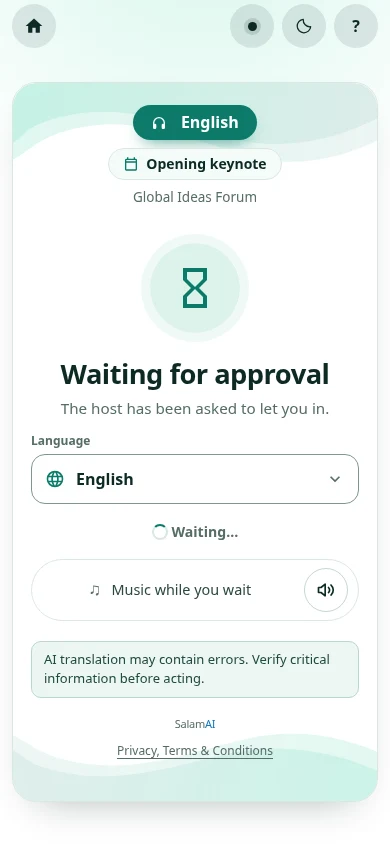
There is no music when you choose Text only, on events that provide text only or use High privacy, or after the organiser ends the event.
Pauses and the next talk
When the organiser ends a talk, the page says Session Has Ended (with the after-event message, if there is one) instead of asking you to wait; if the next talk starts on the same link, it plays again by itself. When the organiser only stops (for a test), the page shows Paused. During a quiet moment the translation can also pause for a while (the page shows Paused, with no after-event message) until the organiser starts translation again. Keep the same tab open for the next talk when instructed: the page keeps checking, also during a long break, and the sound comes back by itself when the talk starts again, usually within about 20 seconds plus the short spoken AI notice when a new session begins (your phone may go to sleep meanwhile; wake it to listen). If the spoken AI notice cannot play, the translation still starts and the written notice stays on the page. If you asked for a summary or transcript on this phone and the organiser sends the talk's documents, the page says it is being prepared: keep the page open, or come back to the same link later; the Summary icon pulses when it is ready (see Request a summary or transcript). The organiser may reuse the same language QR code throughout an event, within its expiry and access rules.
If you open your language’s link after its talk has ended while another language is still running, the end page shows the Language picker with the languages you can still listen to: pick one to open it. After Leave, the same picker offers every language of the event before you tap Listen again. It is not shown when you were not admitted or were removed. When your language’s talk has ended, that page checks again every minute for an hour while it is open, so a language that starts later appears too; after that, tap Try again. While you listen, picking a language that has ended keeps your current language playing and shows that language’s name with “Not available” under the picker.
Your language’s QR stays with that language when the organiser changes the output order or restarts with different settings. If the organiser removes your language temporarily, wait until it is running again. Sound or captions resume when available; follow any audio or headphone prompt shown on your phone.
On every screen outside the session, such as Waiting for approval, after Leave, or when access has ended, the Home button (house icon, top left) goes back to this link's page. A phone that was listening when the organiser ended the talk stays in the session on Session Has Ended: it shows Leave, not Home, and plays the next talk by itself. If you are still admitted you return to your session; downloads you asked for on this phone stay reachable from Summary while the link exists. After the link has expired or been removed, the page still shows them only if it was already open before that; a page opened afterwards shows none (it cannot tell whether the link was High privacy), so save your downloads before the link ends. A High privacy link never shows downloads kept from another event.
If a link has expired, been replaced or been removed, ask the organiser for a current one. A saved screenshot of an old QR does not extend access.
Next: Listening controls and captions · No sound or waiting for approval