
Appearance
Campaigns and translation stations
Access: an organisation administrator or an assigned campaign Admin/Support member, within the actions their role allows.
A campaign provides controlled translation desks for an event. A grant/station has its own link, credentials and rules; it is not a full console account.
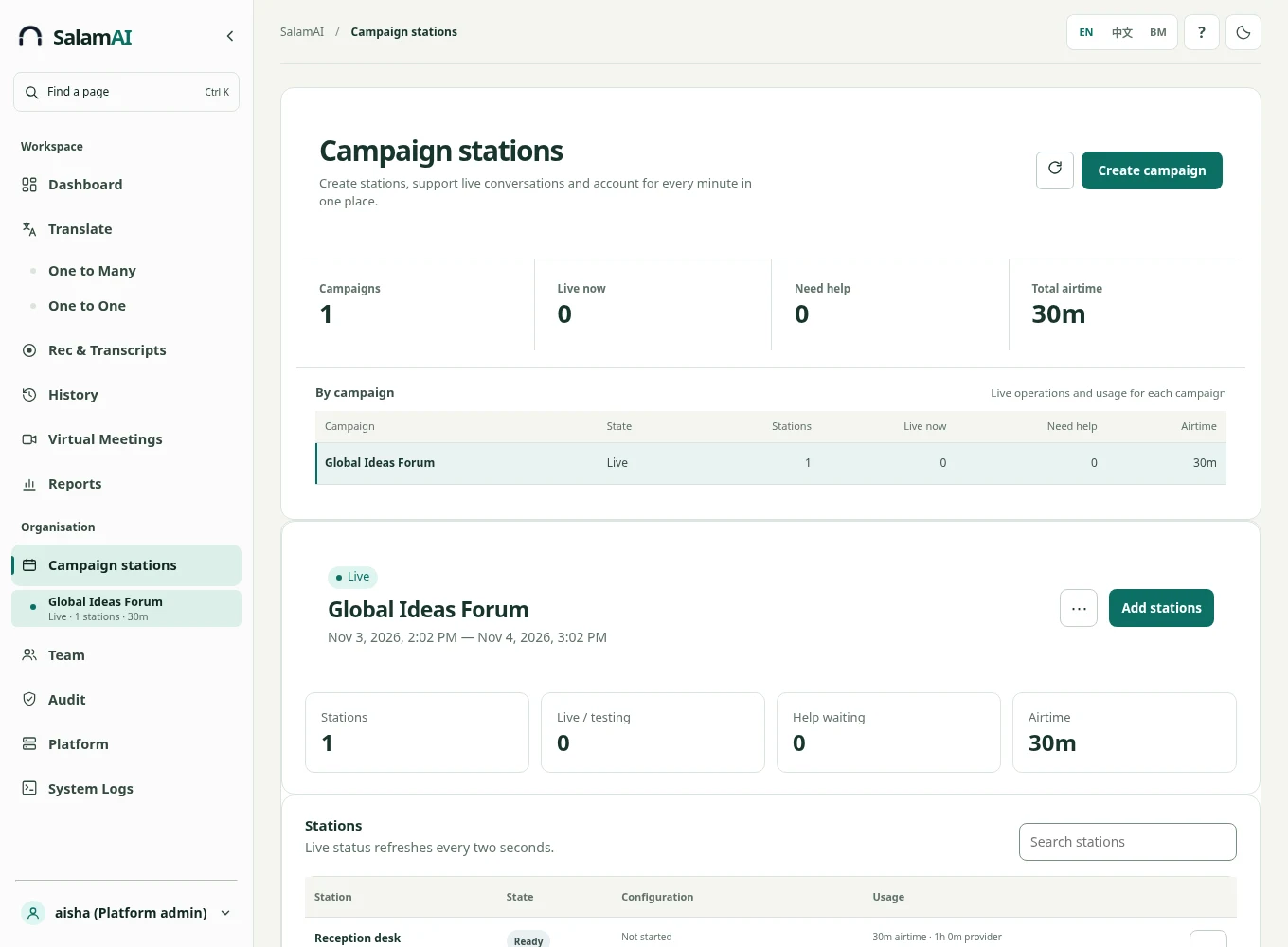
The side menu on the campaign page leads back to the console's own pages, such as Translate, Rec & Transcripts (with its Sessions view, formerly History) and Reports.
Create the campaign
- Open Campaign stations → Create campaign.
- Enter a clear event name and operating start/end times. Check the displayed time zone.
- Choose allowed languages, whether station operators can change them, and the permitted speaking mode.
- Set recording, captions, phone access, privacy and maximum-run choices according to the event policy. Maximum run (minutes) is empty (No limit) for a new campaign: a station conversation then runs until it is stopped, within any organisation run time limit. Stations still stop by themselves after 90 seconds of silence, to save usage. A side that is reconnecting is not counted as translation time.
- Set the maximum number of stations and how many may run at once.
- Save, then review the campaign's effective rules before distributing access.
Required recording and High privacy can conflict. Decide which policy applies; do not promise both incompatible behaviors for the same run.
Station recordings are saved as mono speech at speech quality (clear for listening back, smaller to upload and store). A station on Safari (for example an iPhone or iPad) saves at a higher rate, so its recordings sound as clear.
Create stations and share credentials
Use Add stations → Create stations. Give each desk a recognisable name. Share its link and password privately with the assigned staff. The QR carries the station link; staff still need any required password. Create stations and Edit station show Saving… while they work; you can close the window at any time, and the result still appears on the page when the save finishes.
Test one station on its actual device. Each station normally allows one active device. Share the station guide with desk operators.
Brand and support the event
The campaign actions menu provides Campaign branding, Event messages and Campaign team. Branding can include the event title, description and logo. Preview the station sign-in page after saving.
Assign campaign Admin or Support access only to the people who need it. Monitor live stations and Help requests in the dashboard. Respond to support requests with the station name and current state, and confirm the operator is ready before disconnecting a session.
Station actions
Use the station menu to edit, copy access details, create a new password, reset a stuck active session, disable access or delete a station where permitted. Password replacement affects the people using the old password. Reset/disconnect can interrupt a conversation; coordinate with the desk first.
Review and close
Use By station reports and the offered CSV export for station usage. Campaign members see usage only; billable amounts appear for organisation administrators. Review saved files within the campaign's download window (the saved-files list opens in a dialog; close it with ×). End/disable access deliberately after the event and retain authorised records according to policy.