
Appearance
Team, roles and organisation policies
Access: an Organisation admin for their own organisation. Platform administration is covered separately.
Understand roles
| Access | Typical purpose |
|---|---|
| Member | Run permitted translation work and view their authorised activity. |
| Auditor | Read-only: review permitted reports, records and the Audit trail; no billing, no translation or saving. |
| Organisation admin | Manage the organisation's people, policies, billing and authorised records. |
| Platform admin | Administer organisations and platform-wide controls. |
| Campaign Admin / Support | Perform assigned actions within a particular campaign. |
Use the smallest role that covers the person's job. A campaign assignment is not an organisation-wide promotion. A user's access can also depend on enabled features and event ownership.
Invite and manage members
- Open Team → Members and choose Invite member.
- Enter the correct email and intended role, and review any personal daily allowance.
- Send the invitation and check its delivery status.
- Ask the recipient to complete setup and test sign-in before the event.
Before you press Invite, closing the dialog with × or Cancel leaves without inviting anyone. An invitation already sent is not withdrawn by closing.
Use the member menu for supported role changes, password/sign-in recovery, two-step reset and disabling access. Confirm the person's identity before resetting security. A successfully created invitation is not proof the email arrived.
Email-address changes that require platform administration are handled through the Platform organisation controls, after verifying the new owner and address. Do not create duplicate accounts to work around a spelling mistake without checking existing access.
Set organisation policies
Team → Policies includes supported Companion audio rules, Autosleep requirements, idle-listener limits, High privacy policy, Help Angel availability, notices and retention information. It lists the period for Wait music files. The files marked Default are kept while default, and turning off Default starts the retention period again. Organisation administrators manage these settings under More options → Wait music. Save and confirm the effective policy before operators configure the next run.
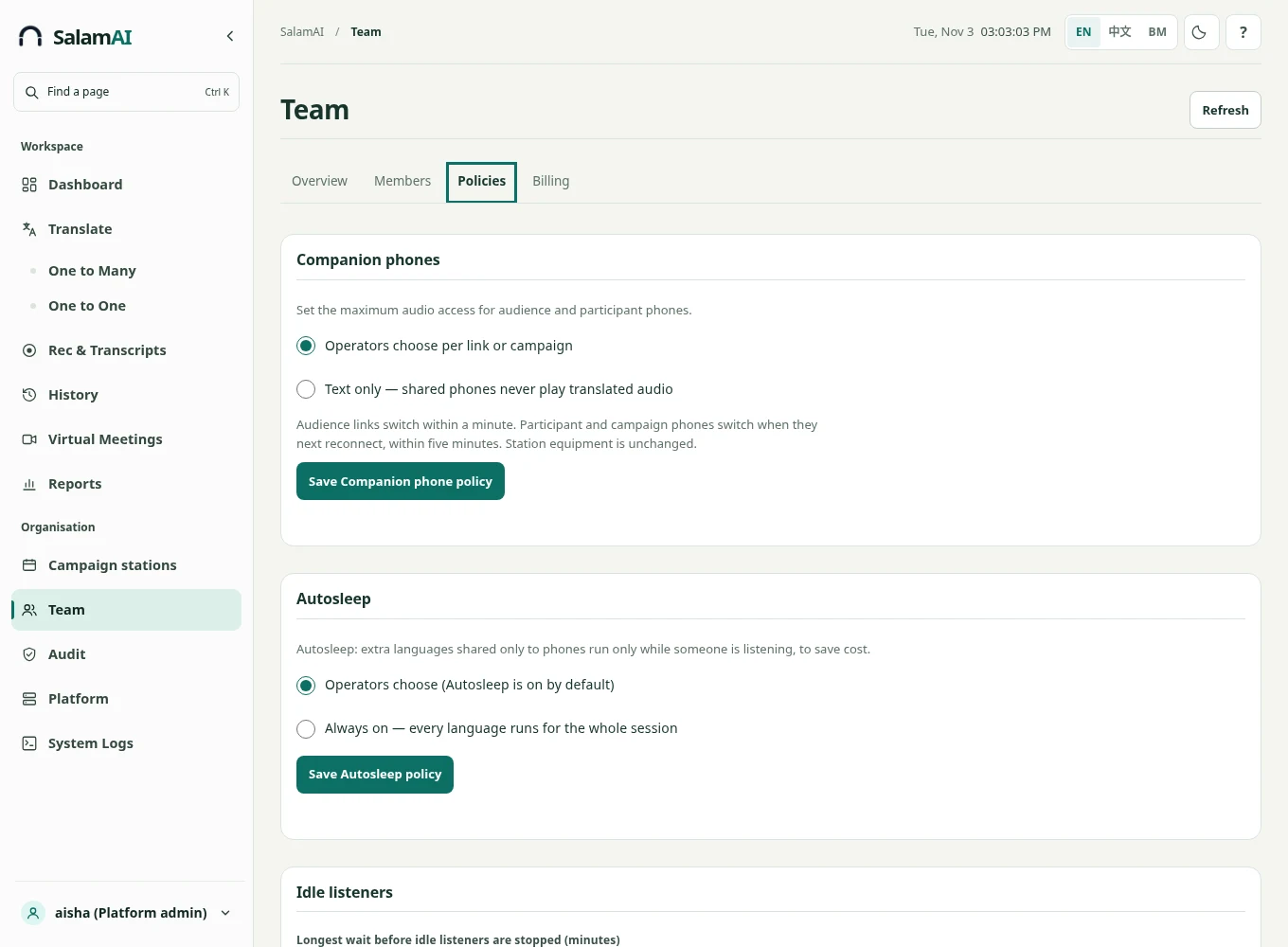
Policies may lock choices in the operator console. Explain the policy to staff rather than asking them to bypass a disabled control. See Privacy for consent and saving decisions.
When relays are enabled for your installation, Team → Relays lists your organisation's own relays and sets which relays your Companion phones use. It needs two-step sign-in. An organisation that still has a pending or accepted relay cannot be deleted until its relays are revoked or rejected. See Site listener-delivery controls.
Monitor and review
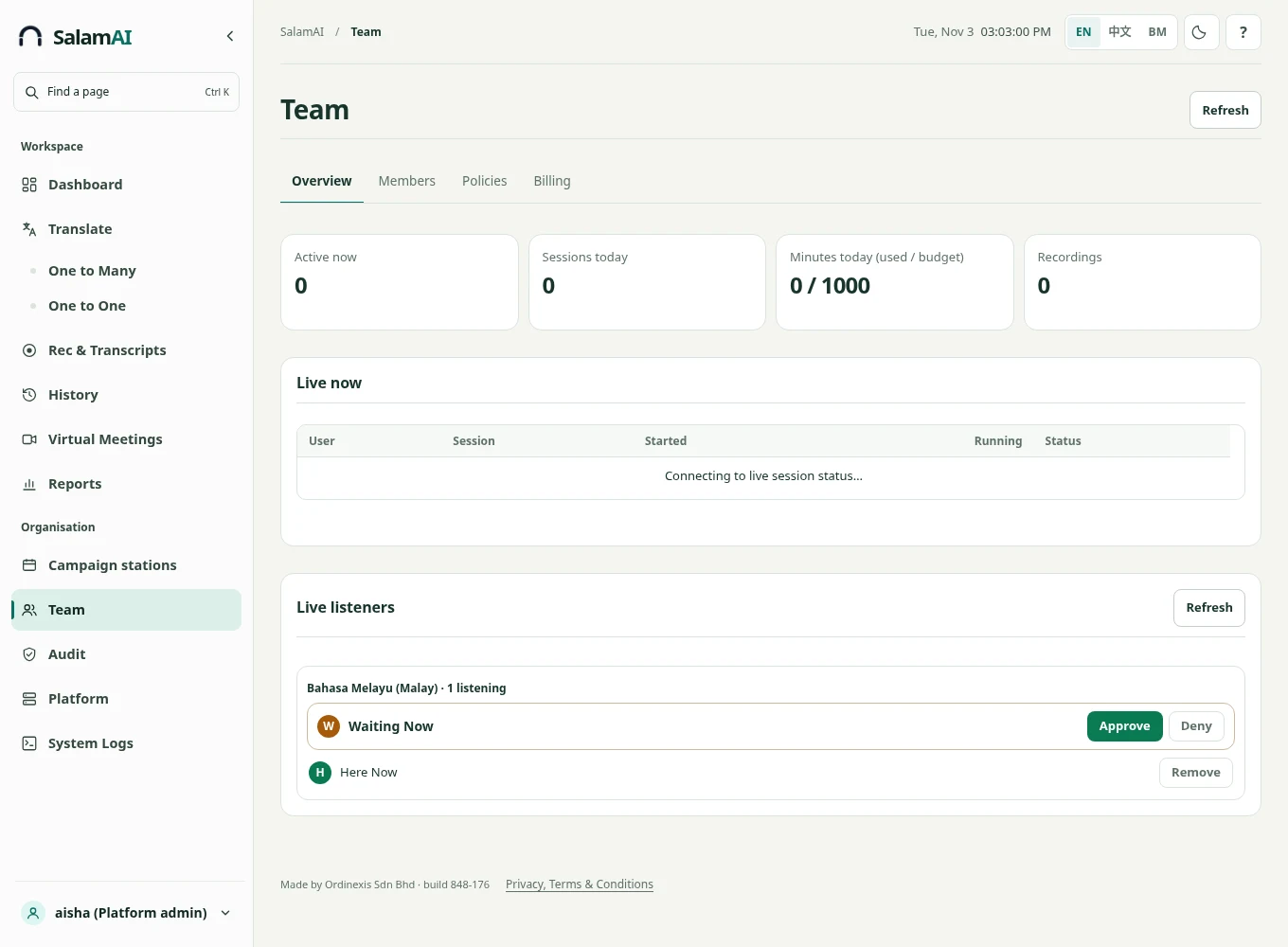
Use Team's overview/live views for current activity and listeners. Use Reports and Billing for the appropriate historical scope. Remove or disable access promptly when a person's duties change, after considering any live event they are operating.