
Appearance
Listening and captions
Once admitted to Companion, use the listening and reading controls on the event page. Available controls depend on what the organiser shares.
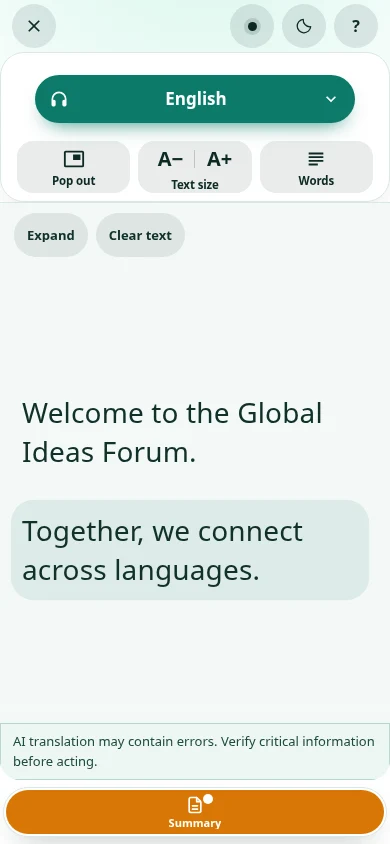
Hear the translation
- Connect headphones, especially in a room with other listeners.
- Select the listening or audio control. If the browser asks you to enable audio, tap that action.
- Check your device's media volume and the headphone output.
- Pause when you need a break. Resume from the event page when ready.
The tabs at the bottom choose how you follow the talk: Listen (the sound), Read and Listen (the sound with live captions), Read (captions without sound) and Audio (the speaker or headset, and Refresh audio). Summary appears when the organiser shares documents. The page's top bar stays in every view, also when the captions are expanded.
Keep the browser tab open. On an iPhone the page asks the phone to keep its sound playing when you switch to another app. Background playback, screen locking and battery-saving modes vary by device. If playback pauses after switching apps, return to the page and resume. Do not rely on a locked-screen setup until it has been tested on your phone.
Read captions comfortably
Use the text-size controls when shown. Choose the text-only view if you prefer reading or cannot use audio. Some events offer translated text, the speaker's original text, or both; unavailable choices are controlled by the organiser.
Use the light/dark appearance control for a comfortable view. Changing appearance or interface language does not change the language of the event translation.
Keep the captions on screen over other apps
On phones and browsers that support it (for example Chrome on Android, and Safari on an iPhone), Pop out shows the newest captions in a small window that stays on screen over your other apps, like a video. Where your phone allows it, the small window also opens by itself when you leave the browser while the sound plays.
- The sound keeps playing as before. Closing the small window never stops it; the page keeps running in your browser.
- On some phones the small window's play and pause buttons control the sound, like the phone's own media controls; on others, use Play on the page. The captions keep moving either way.
- If you close the small window while you are in another app, it does not open by itself again during this visit; Pop out still opens it.
- Pop out is not shown when your phone or browser cannot do this, for example in some apps' built-in browsers. It is shown once the page is ready for it. If your browser says it cannot do this, or the small window fails to open twice (when you tap Pop out, or when the page opens it as you leave the browser), the button stays hidden on that phone for a week. A request the browser turns down or cancels, such as a tap while the page is still loading, does not count.
Understand the status
| What you see | What to do |
|---|---|
| Waiting for approval | Wait for the organiser; give them your entered name if necessary. |
| Paused or waiting for the event | Keep the page open; the operator must start the talk. |
| Reconnecting | Check internet access and allow the page to recover. |
| Audio needs a tap | Tap the audio/enable control and check volume. |
| Read | Read the captions; audio may be unavailable under the event policy. |
| Captions expanded to the full screen | A small see-through Play / Pause button (and Pop out, where your phone offers it) sits at the bottom left of the captions; with the phone held sideways the buttons sit in a column at the left, beside the text. The newest line stays fully visible above the bottom edge. |
| Access ended | Ask the organiser whether the event ended or your link changed. Home (top left) goes back to this link's page. |
If the organiser asks where your audio comes from, open Status: the Player line ends with R: and a name when the audio comes through the event's own relay, or D when it comes directly from SalamAI.
A connection status cannot prove that your headphones are audible. Test volume using a short spoken phrase before the main talk.