
Appearance
Request a summary or transcript
Some events offer a Summary action in Companion. The organiser must enable this feature (and approve your access, if the event uses approval). If you do not see it, ask whether documents are available for this talk.
On the Companion listening page, the organiser usually sends the summary to everyone: you do not need to ask. The summary in the language you listen to appears in your Summary window by itself and is ready after the talk ends.
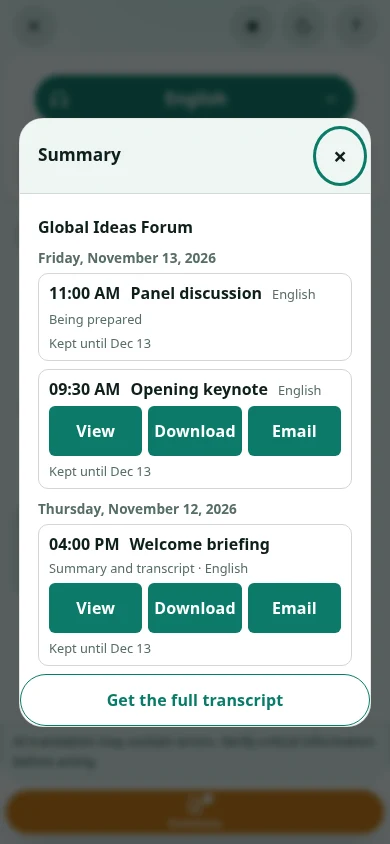
Your Summary window
On the Companion listening page, open the Summary icon at the top of the page. Everything in it is in the language you chose for the page; switch the page language and the window follows.
- Talks are grouped like folders: the event, then the day, then each talk with its start time and name, newest first.
- A talk that is not ready yet says After the talk or Being prepared.
- A ready talk has three buttons:
- View opens the PDF to read.
- Download saves the PDF on your phone.
- Email sends the PDF to your email address.
- Get the full transcript asks for the whole transcript of the current talk; it is added to the window like the summary. When the organiser does not send summaries to everyone, or the summary could not be asked for by itself (a very busy moment), Get the summary is shown as well.
Email: confirm your address once
- Tap Email on a ready talk.
- The first time, enter your own email address and tap Send. The page says Check your email (also Spam) and tap the link to confirm your address. Then it is sent.
- Open the confirmation email (check Spam or Junk too) and tap the link. On the page that opens, tap Confirm email: until you do, the address is not confirmed. The link works for 24 hours. If it has expired or was already used, tap Email again for a new link.
- If the window asks for your address again, email to that address could not be delivered: enter another address.
- After that, Email on any talk is one tap: the window shows Emails go to with your address (partly hidden), and Change lets you use another address.
The confirmation is kept on this phone for about 90 days. On another phone or browser, you confirm once more.
Documents follow your Companion language. To get a talk's documents in another language, switch the page language and open the window again.
On One to One phones, virtual meetings and stations
These pages use a request form instead of the folder window, and nothing is sent automatically:
- Join and obtain approval for the event.
- Open Summary on that page.
- If shown, tick Summary, Full transcript, or both checkboxes. The choices offered depend on the event’s document policy.
- Documents normally follow your Companion language. Choose a document language only if the form displays a language selector.
- Choose Download on this phone or Email it to me instead, where offered.
- For email, enter your own address carefully and complete the email-verification step: open the confirmation email (check Spam or Junk too) and tap Confirm email. The link works for 24 hours. If it has expired or was already used, save your email again for a new link.
- Save the preference and check that the page confirms your request.
You are requesting documents for the whole talk, which can include speech before you joined. Only request documents you are authorised to receive.
When documents become available
The organiser must end the talk before its final documents are prepared. A request is not an immediate download of an unfinished talk. When the organiser ends a talk they choose whether its documents are sent: if they end it without sending (for example after a test), nothing is prepared, the download shows No longer available and no email is sent.
After the talk ends and the organiser sends its documents, the Companion page says Your summary is being prepared. Keep this page open, or come back to this link later. (or Your transcript is being prepared… when you also asked for the transcript) You can close the page and open the same link again later. When a phone download is ready, the Summary icon pulses for a few seconds and then keeps a dot, the page says Your summary is ready. (or Your transcript is ready.), the browser tab title starts with ●, and some phones vibrate once. With reduced motion turned on, only the dot is shown. If the event has ended when you reopen the link, your Summary window stays reachable from the Summary icon on that phone.
By email, the confirmation email comes first (once per phone); it only confirms your address. Your documents follow in a separate email with the PDF attached.
For a multi-talk event, each talk has its own row. Check the talk's name and time before you view, download or email it. Processing time depends on transcript availability and the document requested.
If nothing arrives
Check that the talk shows its buttons (it has ended and is ready), and that you confirmed your email address. Check Spam or Junk and the address you entered: mail apps often switch off links in Spam, so move the confirmation email to your inbox before tapping its link. Ask the organiser to review the request's delivery status if it remains pending or failed.
Availability is limited by the event's retention period. Email attachments already delivered cannot be recalled by deleting a document in SalamAI. Treat received documents according to your organisation's information policy.
Read with care
A summary is a concise interpretation, not a verbatim record. A transcript can contain recognition and translation mistakes. Check names, numbers and quotations against an authorised source. These documents carry AI and organiser notices and should not be treated as an official record without the organiser's separate confirmation.